
Adding new VAT rate
VAT rate must be set up in the system for each item (if an item is exempt of VAT, a VAT rate must still be set, albeit at 0%).
To create a new VAT rate, go to Settings – Accounts – Vat Rates.
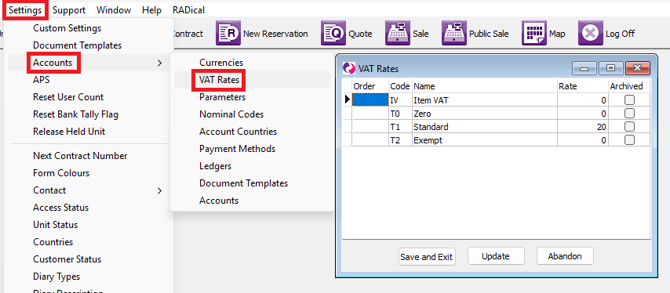
Place your cursor on the very last existing line and press the down-arrow key on your keyboard to create a new line.
Give it a “Code”, a “Name” and a percentage. Click on “Update” to save the job.
Changing new VAT Rate on Ledger Items
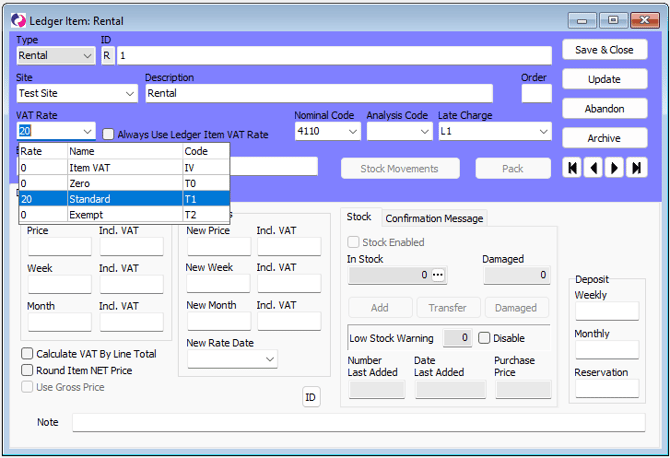
Note: To link a VAT rate to a ledger item, go to the Ledger Items window (in Maintenance), open the ledger item and select the right VAT rate from the scroll-down menu.
Changing VAT rate and Unit Rates on Active Contracts
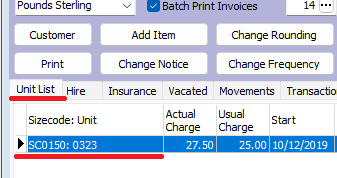
Open the contract window, click on the Unitlist tab and double-click on the unit
Inside this window, you will need to select new vat rate.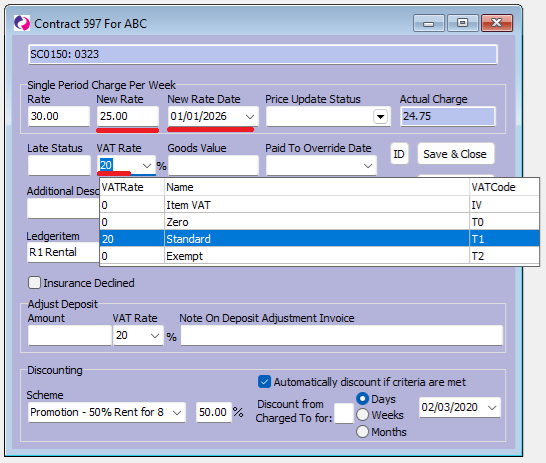
If you would like to keep the same amount on the invoice total we will need to adjust the unit rate to get the same total.
In this example, we are changing the customer from zero VAT to 20%.
Using the following formula (rate / 120) * 100 we can reduce the rate to keep the same total after adding 20% to the invoice.