1. Creating a Customer Mandate and Linking it to GoCardless
Space Manager lets you register a customer's bank details with GoCardless directly from the Bank Account screen. Follow these steps:
- Open the customer record in Space Manager and go to Details → Bank Account.
- Select an existing bank account, or create a new one.
- Enter the customer's bank account number and sort code.
- Choose a validated date and tick the “DD Returned” box.
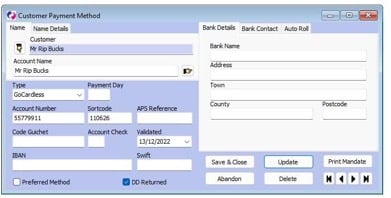
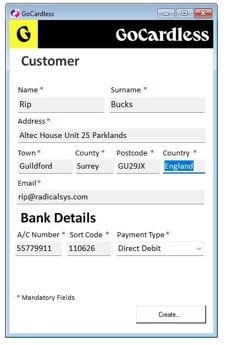
- Click Print Mandate. A confirmation form will appear — check the details are correct, then click Create.
Before you click Create, the customer form looks like this:
Once the customer has been created, Space Manager displays the GoCardless customer ID, along with the linked bank account and mandate. By default the customer is set up for Direct Debit.
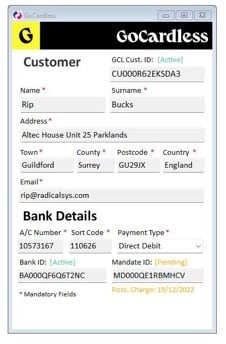
Tip: to charge the customer with a one-off Instant Payment Link instead of recurring Direct Debit, simply change the Payment Type from “Direct Debit” to “Instant Payment Link”.
Space Manager confirms each step of the submission with an information popup:
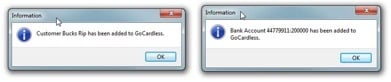
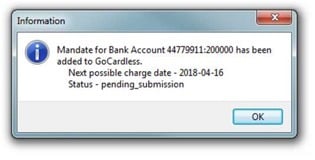
Once everything has been submitted and confirmed, Space Manager asks whether this bank account should become the customer's default payment method.
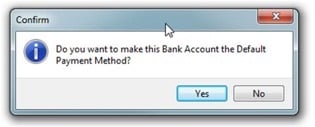
If the customer already has active contracts, Space Manager will also ask whether those contracts should switch to GoCardless as their default payment method.
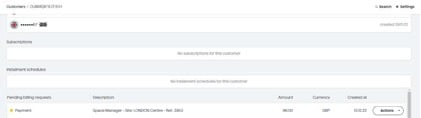
You can log in to the GoCardless dashboard at any time to check the customer record that was created:
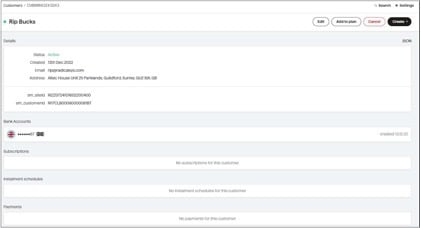
2. Creating Recurring Payments
After invoices have been generated, Space Manager automatically creates a transaction in the BACS GoCardless module for every contract that uses GoCardless as its payment method.
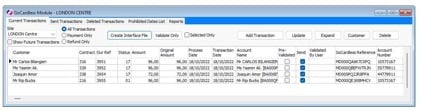
Clicking Create Interface File sends these transactions to GoCardless. Space Manager then displays the result of the submission:
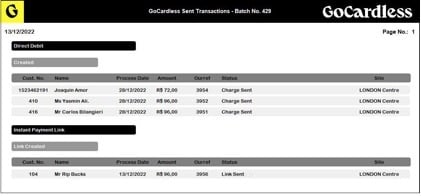
Transactions appear as Direct Debit or Instant Payment Link depending on how the customer's payment type is configured.
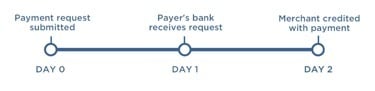
The GoCardless payment cycle can take up to three working days. Full details are available at gocardless.com/direct-debit/timings.
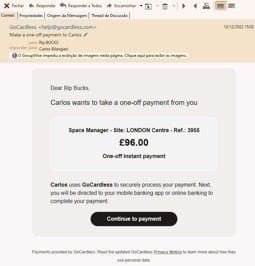
Customers who are sent an Instant Payment Link receive an email similar to the one below. Once they complete the payment, Space Manager reads the response back from GoCardless and imports the payment automatically if it was accepted.
3. Updating Transaction Status
When the Startup Routine is run in the morning, Space Manager checks the status of each payment with GoCardless — importing any that were successfully accepted and rejecting any that failed.
You can also trigger this manually at any time by clicking the Update GoCardless icon.

Space Manager will show the result of the update:
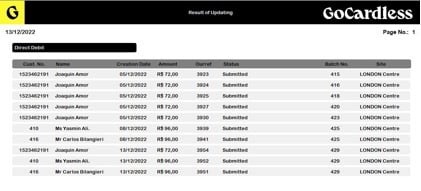
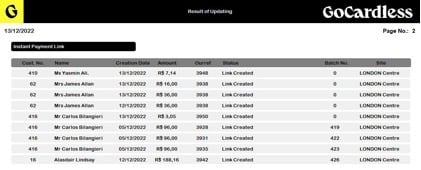
A status of Submitted means the transaction has been received by GoCardless but has not yet been processed — simply wait for the payment cycle to complete.
To keep things simple, Space Manager only shows three statuses, even though GoCardless itself uses more. The table below shows how each GoCardless status maps to a Space Manager status:
|
GoCardless Status |
Space Manager Status |
|
Pending Submission |
Submitted |
|
Submitted |
Submitted |
|
Confirmed |
Confirmed (Payment) |
|
Paid Out |
Confirmed (Payment) |
|
Cancelled |
Failed (Payment rejected) |
|
Failed |
Failed (Payment rejected) |
|
Charged Back |
No action taken — this status is very rare |
4. Creating a One-Off Payment Link Transaction
To create a one-off Instant Payment Link, right-click on the Transactions menu and select Create GoCardless Payment Link.
The customer must already be registered with GoCardless before you can create an Instant Payment Link for them.
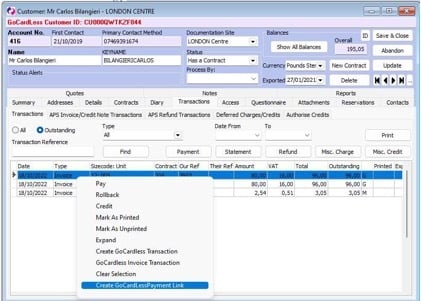
Space Manager confirms that the payment link was created successfully:
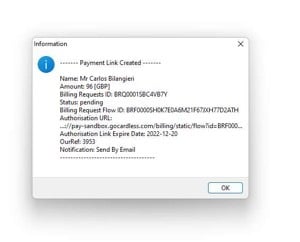
The new payment link then appears against the customer's record in GoCardless, and the customer is notified automatically by email.
5. Checking Customer Details and Transactions
To review a customer's details and transaction history, open their Bank Account record and click Print Mandate.
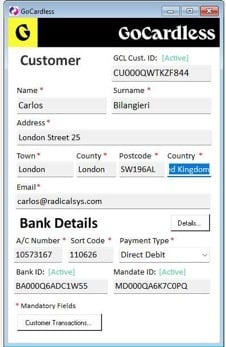
From there, click Customer Transactions for a full overview of all of that customer's transactions:
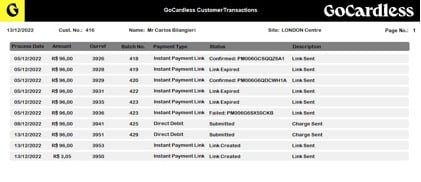
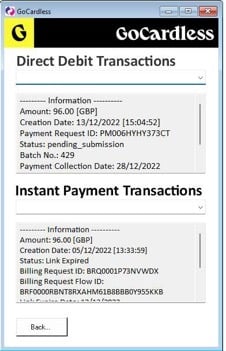
Clicking Details on any transaction shows the full record for both Direct Debit and Instant Payment transactions: