Sending a Contract for Signature
1. Once a contract is created, Space Manager asks whether you want to send it via Signable.
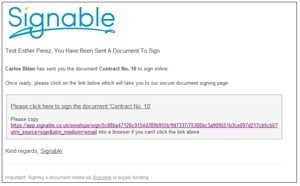
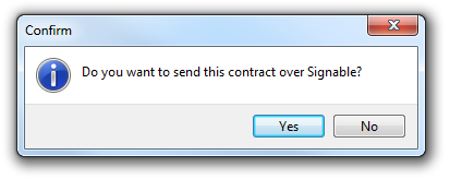 2. Select Yes and the customer receives an email with a link to sign the document.
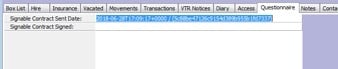
 3. Space-Manager records the date the envelope was sent, and its envelope ID, on the contract's Questionnaire tab. The second field on this tab fills in automatically once the customer signs the contract and the PDF is imported.
4. The customer must click the link in the email and complete every required field - signatures, text, dates, checkboxes and so on - before they can continue.
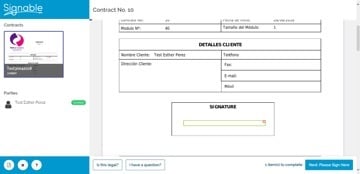
5. Once the customer signs and confirms, the contract is then sent to the site for them to sign their part of the contract. NOTE: The cotract template in Space-Manager must have the required signer2 tags in order for the contract to be sent to the site for countersigning.
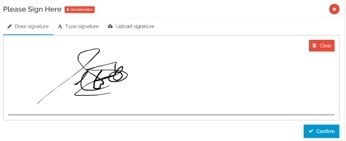
Here is an example of a signature field:
Checking and Importing Signed Contracts - Envelopes
Space Manager checks for signed contracts automatically when the startup routine is run, however this can be done manually at any time during the day.
To check whether there are contracts that have been signed, click the Envelopes button on the top icon bar:

This connects to Signable and retrieves the latest status for every contract (envelope) that has been sent.
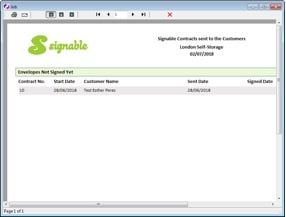
If a contract has been signed by both parties it will import into Space-Manager.
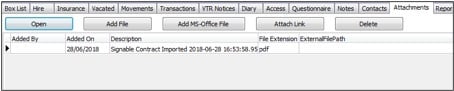
You can find the PDF in the customers Contract window, under Attachments: