
Things to note:
- The Export works the same as always, you are simply replacing the access interface script in the Site Access Control tab and replacing one variable path.
- This job writes the .dat file to a One Drive folder using Graph API to authenticate. From our tests this is relatively quick, but it’s worth emphasizing to the customer that it may take 10-20 seconds for PTI to update, and to just keep this in mind.
Workflow:
Space Manager Cloud writes the .dat file to One Drive Folder > One Drive syncs this folder on the local PC where PTI is installed > PTI grabs the .dat file
What the Customer needs to do
- The Customer needs to set up the One Drive folder. There is a guide on the Public Knowledgebase which you can send customers:
ENGLISH
https://145781044.hs-sites-eu1.com/help-radicalsys/spaceman-cloud-with-local-access-control-onedrive-setup-guide
SPANISH
https://app-eu1.hubspot.com/knowledge-article/145781044/editor/386666895599/content?redirectUrl=/knowledge/145781044/265033723097/articles/state/all
The customer needs to send us:
- Application (client) ID
- Directory (tenant) ID
- Client secret Value
- OneDrive account email address: The email address of the person whose OneDrive the folder is in
- Folder Path: The folder name they created where PTI will collect from, e.g. Sitename/Access Control/
NOTE: If the customer already uses Graph API, the likelihood is that these are already specified in Space Manager Site Settings, or the Site Questionnaire. Please check with the customer that they will be using the same keys:
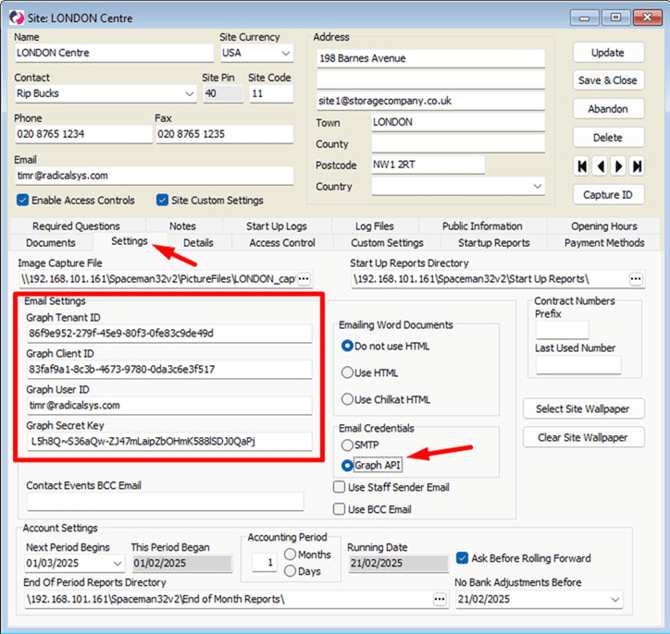
Once you have this information we can proceed with setting up the Access Interface Script:
What We need to do
Step 1 - Add the Graph API Keys to Space Manager
Add the Graph API keys to the customers Space Manager. If already using Graph API, check the keys are the same ones being used already (see above).
Step 2 - Upload the XML Script - Per SITE
Upload the XML to the customers Space Manager.
Go to Maintenance>Sites>Open the site>Access Control tab>Access Interface Script and click on the 3 dots to upload the XML Script.
XML Location:
L:\Job Runner\Access Control Scripts\Local Access Control - Spaceman Cloud\PTI to One Drive - WORKING\PTI access control - OneDrive.xml
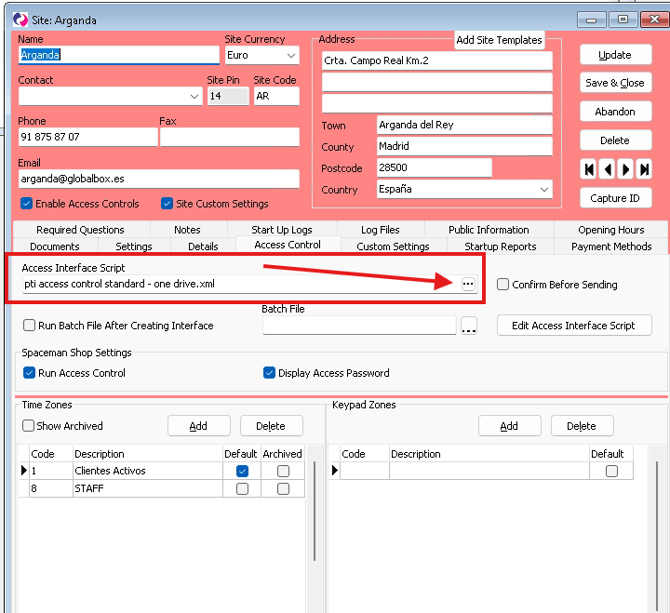
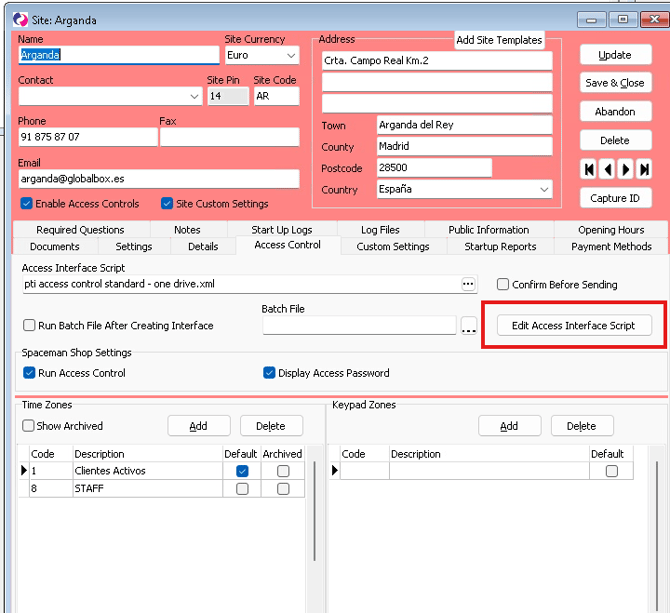
Once uploaded, click Edit Access Interface Script as we need to set the One Drive folder path in the "odFolderPath" variable and the siteid in the SiteId variable.
Open the Access Interface Script in the XML editor in the customers database.
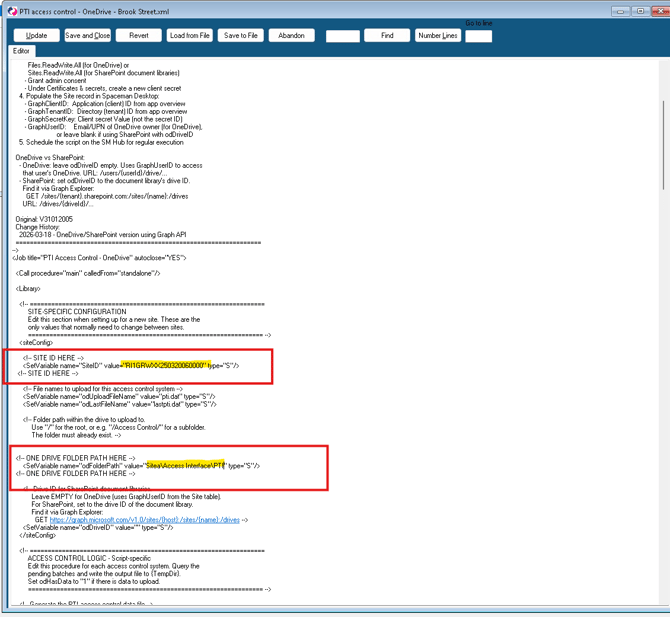
Add the One Drive folder to the OdFolderPath variable
Example:
<SetVariable name="odFolderPath" value="FOLDER PATH HERE" type="S"/>
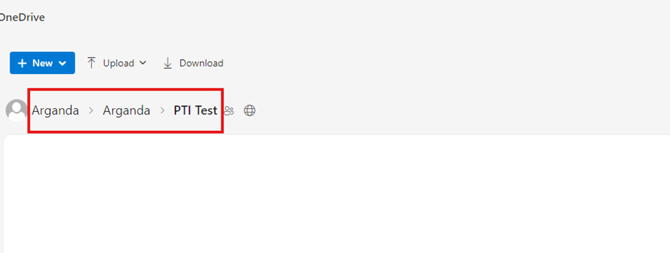
The example here shows the folder path (Value) as "/Arganda/Arganda/PTI Test", this is the folder path that shows in the customers One Drive account, which is where the PTI file will export to.
Next, find the siteid of the site you are adding the script to.
You can find this by going to Support>SQL Tool and running the following command:
select * from site
Copy the SiteID and paste into the SiteID variable.
Example:
<SetVariable name="SiteID" value="SITE ID HERE" type="S"/>This is what it looks like inside the XML editor:
This is what the folder looks like in One Drive. In this instance, the folder path you would set in the OdFolderPath variable would be Arganda\Arganda\PTI Test
NOTE: Please only edit the script ONCE it has been uploaded.
Troubleshooting
Error messages from the script always include the stage that failed (the SMWProgress value), which makes them easier to diagnose.
| Error message | Likely cause and fix |
|---|---|
| "SiteID is not configured" | The SiteID in siteConfig is blank. Edit the script and set the correct Site ID. |
| "Site not found for SiteID" | The Site ID does not exist in the database. Double-check the Site ID in Spaceman Desktop. |
| "Access Control is not enabled" | Enable Access Control on the site in Spaceman Desktop before running this job. |
| "Failed to obtain Graph API access token" (OneDrive) | Check that GraphClientID, GraphTenantID, and GraphSecretKey are correct, and that admin consent was granted for the app in Azure. |
| "Failed to upload file to OneDrive. HTTP Status: 401" | The access token is invalid. Check credentials in the Site record. The client secret may have expired. |
| Job runs but no file appears / access control is not updating | Check that gdHasData / odHasData is being set to "1" in generateAccessFile. The SQL query may not be finding any pending records. Check the LastAccessBatchProcessed value on the site record. |