
Summary of process
WARNING : Always processa COPY of the customers database, NEVER the live database.
1. EON Test
2. Space-Manager Program Upgrade to latest version
3. Customer to Cloud Oboarding App
4. Create customer on DandD
5. Email IQX to add to cloud
1. EON Test
The EON Test is a tool designed to check all the web functions inside the database. It will create a report with any bespoke processes that we should be aware of prior to migrating to the cloud. More information can be found HERE.
Simply copy the EON.LinkEvaluator and all its contents into the same spaceman32 directory where the live database is store. You must be connected to the database server and paste this into the local spaceman32 directory. It will not work from a network spaceman32 folder path.
2. Space-Manager Exe Upgrade to the latest version
First you need to upgrade Space Manager to the latest program version. You can find steps below on how to prepare Space-Manager for an upgrade, and upgrading it.
PREPARING SPACE-MANAGER FOR UPGRADE
3. Customer to Cloud Oboarding App
Follow the steps in the following guide.
The process is as follows:
- Generate Upload Package: This creates a link so you can download a zip which you then extract in the customers server's Spaceman32 directory, in the same folder as the copy of their database that you are working on.
- Run Imports with Tracking: This imports all of the XML scripts/reports etc into the database
- Upload Database: This uploads the database to our own Azure server for processing
- Download Database: This downloads the database to our Azure server so we can begin the database processing (XML adjustments, Unload/Reload).
- Process Database: This runs the database processing where the XML scripts are modified to work in the cloud environment and the unload and reload of the databsse takes place
- Upload to S3 for cloud access: This uploads the database to Amazon S3 so that the cloud guys can process it for access on the cloud.
CLICK HERE FOR THE STEP BY STEP GUIDE
4. Create customer on DandD
To create the customer on DandD (aka "The Stub"), which creates the URL itself, we do this in DandD.
- Open your browser and go to dandd.sm-infinity.co.uk.
- Log in with your credentials.
- From the top bar, click Management Tools.
- Choose SM Cloud Clients.
- Click NEW.
- A new window will pop up where you can add the name (cannot start with a number).
- Enter the name twice (in both required fields):
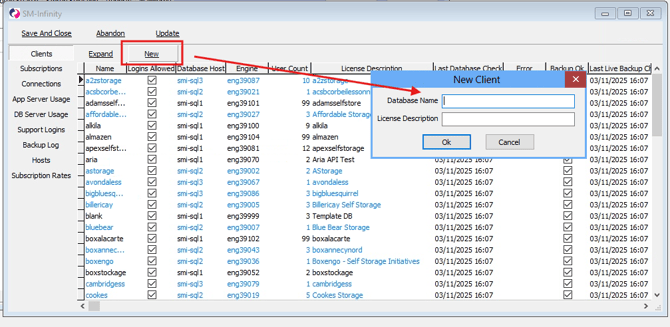
This is the name that appears at the beginning of their link, example "name.sm-infinity.co.uk".
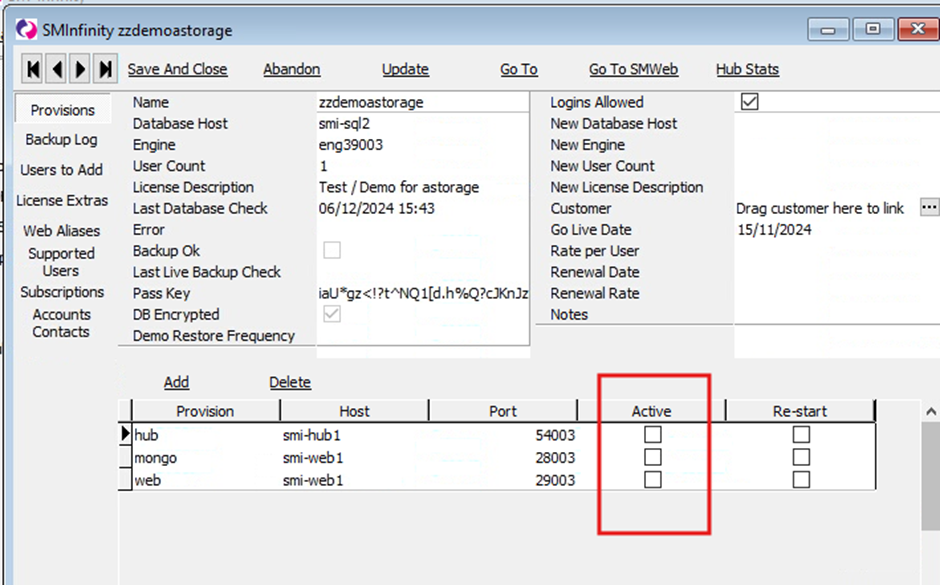
Make sure these 3 fields are ticked:
5. Email IQX to add to cloud
Finally, email radical-support@iqx.co.uk to ask them to add the database that you have uploaded to the customer. Example, if a customer we have migrated is called "Globalbox", and the URL is globalbox.sm-infinity,co.uk, we would ask IQX to:
"Please add the database in folder called GLOBALBOX LIVE to globalbox.sm-infinity.co.uk. This is a live cusotmer so please create the zzdemo environment also."