
Audience
- Admins
- Support staff
Spaceman Portal and Shop Registration Custom Settings
Registration in Spaceman Portal and Spaceman Shop is configurable via the following settings.
Go to:
Settings → Custom Settings → Page “Spaceman Portal Registration”
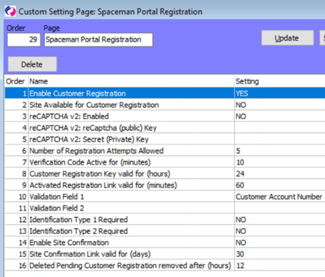
- Enable Customer Registration
- set to YES to allow customers to register via Portal and Shop
- Site Available for Customer Registration
- This is a setting to be used in Site specific custom settings. Leave as NO
- reCAPTCHA v2: Enabled
- If set to YES, it will use the public and private key you provide to display a reCAPTCHA v2 widget for customer registration. This is a widget that will add some checking to see if the user on the website is not a robot before continuing with the registration process. By default, the setting is set to NO.
- reCAPTCHA v2: reCaptcha (public) Key
- reCAPTCHA v2: Secret (Private) Key
- If the reCAPTCHA v2 is enabled, these two custom settings need to be filled in with keys from Google’s reCAPTCHA website otherwise an error will be produced. By default, both settings are left empty.
- How to get the Public/Site and Secret/Private keys for the reCAPTCHA v2 module:
- Go to Google’s reCAPTCHA website https://www.google.com/recaptcha/admin
- Sign into the Google account you would like to create the new reCAPTCHA keys on.
- If you already have a site, you will need to add a new one by clicking the + (plus) button to get to the “Register a new site” page.

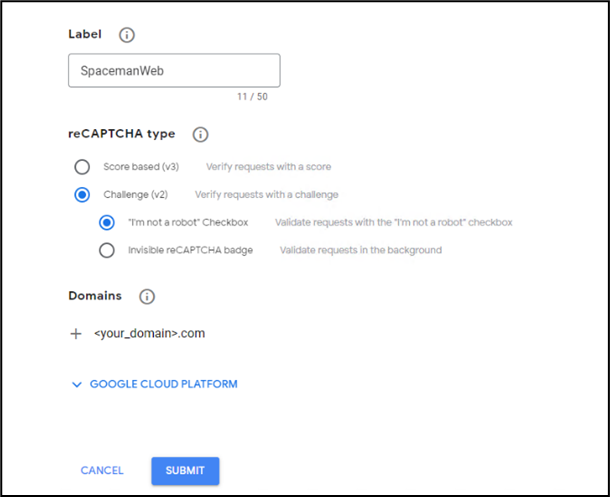
- Provide a label to identify your site.
- In “reCAPTCHA type”, select the “Challenge (v2)” type then the “I’m not a robot” options.
- In “Domains”, Provide the domain or list of domains this reCAPTCHA will be used on.
- You do not need to worry about the Google Cloud Platform options if you do not want to.
- Press Submit
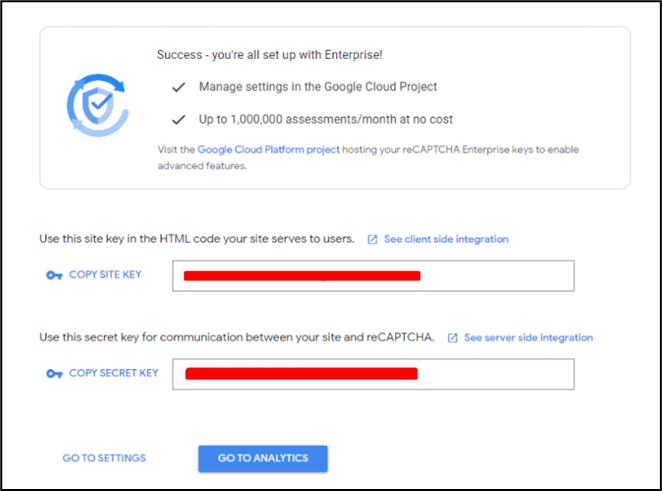
- You should be taken to a page with a Site Key and Secret Key.
- Take both keys and put them into the custom settings.
- Site Key → “reCAPTCHA v2: reCaptcha (public) Key”
- Secret Key → “reCAPTCHA v2: Secret (Private) Key”
- Number of Registration Attempts Allowed
- Number of registration attempts that can be done by a single email address before it is blocked from making any more. The site is able to then unblock the email. See section "Managing Customer Registrations / Accounts". By default, the number is set to 5.
- Verification Code Active for (minutes)
- Number of minutes the verification code sent to the customer at the start of registration is active for. By default, the number of minutes is set to 10.
- Customer Registration Key valid for (hours) - NOT IN USE
- Activated Registration Link valid for (minutes) - NOT IN USE
- Validation Field 1 - Required
- Validation Field 2 - Optional
- Choice of up to two fields available for the validation of an “Existing Customer” registration. If a customer says they are an existing customer, they will need to provide some proof. With these two settings, you can add one or two fields for the user to fill in with the relevant information as proof they are the same customer they say they are (linked with the email address they provide).
- Available fields: Customer Account Number, Date of Birth, Invoice Transaction Reference, Contract Number
- Please make sure that the selected fields are always available to the user and findable within Spaceman Desktop
- Can the customer account number, invoice transaction number, contract number be found by the customer on documents previously sent to them? Are these documents sent systematically?
- Will the customer’s account on Spaceman Desktop have their date of birth? Will there be an invoice or contract for them to use the number/reference of?
- By default, the Validation Field 1 is set to ask for the Customer Account Number. Validation Field 2 is set to nothing, which means it will not be displayed.
- Identification Field 1
- Identification Field 2
- Controls whether each identification number field is shown on the registration form. Both fields can be configured independently.
- Set to REQUIRE to show the field and make it mandatory — occupiers cannot complete registration without entering a value.
- Set to SHOW to display the field but allow occupiers to leave it blank.
- Set to HIDE to remove the field from the registration form entirely. This is the default after installation.
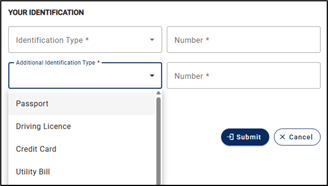
- The identification types available for occupiers to select are managed in Spaceman Desktop → Settings → Identification Types.
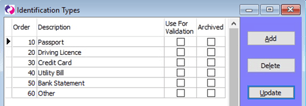
- If an identification field is not appearing on the registration form, check that the relevant setting (Identification Field 1 or Identification Field 2) is not set to HIDE.
- Enable Site Confirmation
- ONLY enable this setting if the Site wants to confirm each Customer Registration done in the Portal (NOT Spaceman Shop!) before allowing them access. If enabled, the site will receive an email every time there is a new customer registration, and the site must approve the registration before the customer is able to access Spaceman Portal.
- Site Confirmation Link valid for (days)
- Number of days after a customer’s registration the site will have to confirm it (Only if Site Confirmation is enabled “Enable site Confirmation”). By default, the number of days is set to 30.
- Deleted Pending Customer Registration removed after (hours)
- Number of hours after a site deletes a pending registration that the record will be deleted. By default, this is 12 hours