Audience
- Admins
- Support staff
Managing Sizecode and Item Images
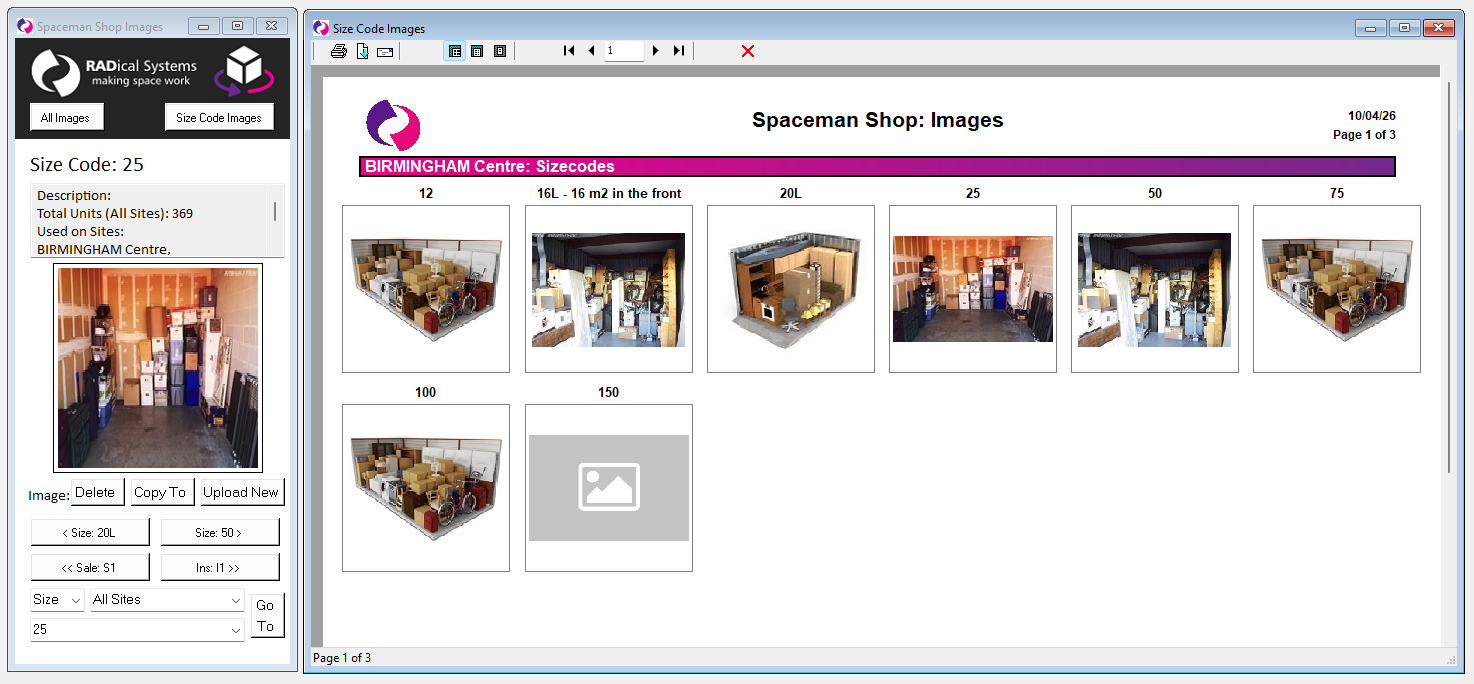
When Spaceman Shop is installed, placeholder images are used by default for all sizecodes and ledger items. To add or manage images, use the Spaceman Shop Images job in Spaceman Desktop. This single job handles both sizecodes and ledger items in one place.
Go to: Spaceman Desktop → SpacemanWeb → Spaceman Shop Images
The job opens with the first sizecode already selected. Use the navigation buttons at the bottom to move between sizecodes, hire items, sale items, and insurance items, or use the Go To dropdown to jump directly to a specific item.
- Upload New – add or replace the image for the currently selected item
- Delete – remove the current image and revert to the placeholder
- Copy To – copy the current image to other items of the same type in one step, useful when multiple sizecodes or ledger items share the same image
- All Images – open a report showing all sizecodes and ledger items alongside their current images, giving a quick overview of what has and has not been set up
- Size Code Images / [TYPE] Images – open a report showing sizecodes (or current type) only
Note: If customers are reporting placeholder images in Spaceman Shop, use the All Images report to identify which sizecodes or ledger items are missing images, then upload them using this job.