
Audience
- Admins
- Support staff
Configuring Spaceman Portal
Upon SpacemanWeb installation, a number of new custom settings pages are added, to give Admins additional configuration options.
Go to:
Settings → Custom Settings → Page “Spaceman Portal” 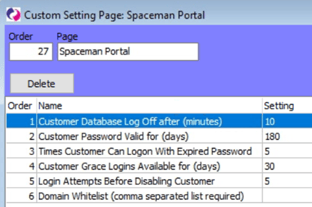
- Customer Database Log Off after (minutes)
- The number of minutes a customer account can be logged in for without actions. The customer account will be disconnected upon its next action in Spaceman Portal following this. By default, the number of minutes is set to 10.
- Customer Password Valid for (days)
- The number of days the customer’s password is valid for. They will be prompted to change it the next time they log in after the number of days since a new password has passed. By default, the number of days is set to 180.
- Times Customer Can Logon With Expired Password
- The number of times a customer can use an expired password before their account is blocked. A password is expired once the number of days of validity of the password since its creation has passed (Set in Setting “Customer Password Valid for (days)”). By default, the number of times is set to 5.
- Customer Grace Logins Available for (days)
- The number of days after a password expires that a user can log in with the expired password. By default, the number of days is set to 30.
- Login Attempts Before Disabling Customer
- The number of login attempts a customer account is allowed before their account is blocked. By default, the number of attempts is set to 5.
- Domain Whitelist (comma separated list required)
- If needed for whitelisting access to the Customer Portal.
- If needed for whitelisting access to the Customer Portal.