
Audience
- Admins
- Support staff
Spaceman Shop is fully integrated with Signable. If Signable is enabled, when a new contract is created from Spaceman Shop the contract to be signed is sent to the customer. When they have signed their contract, it can be imported into Spaceman Desktop and the signed contract can be viewed in Spaceman Portal.
Set up Signable Contract Signatures
At time of writing, Signable has a free trial of 14 days including 20 envelopes (an envelope is a signature request)
Get your API Key
-
Head to the Signable website: https://signable.app
-
Register a new account if you haven’t already.
-
On the Signable website’s sidebar → Integrations → API % Webhooks → + Add API Key
-
Provide a name, leave the Production key toggle to Live (on) and Save.
-
Production key toggle must be set to Live even when testing, otherwise Spaceman Web will not be able to send a contract signature request.
-
-
Click “Show key” and keep the key for the next step.
Run Signable installation
- Go to: Spaceman Desktop → SpacemanWeb → smwConfiguration Signable → Install Signable
-
Add your Live API key from your Signable account and select the site you wish to add it to. Run this job once for each site you want Signable on.
- Log out of Spaceman Desktop and Log back in again
Make Signable Contract Template
If your contract RTM template doesn't already include the required Signable Tags, you need to add them.
Open your current contract template in the Report Builder: Spaceman Desktop → Support → Report Builder.
- You can open it directly from the site’s document templates:
Spaceman Desktop → Maintenance → Sites → Select Site and Expand → Documents tab
→ Double click “Contract” name in the Template column (or whichever row holds your contract RTM) - Spaceman Cloud: If you have uploaded your Contract RTM to the System Jobs and Reports, you can find it in the same menu and edit it.
Spaceman Desktop → SpacemanWeb → Maintenance → System Jobs and Reports
→ Find your Contract RTM and select it → Edit → Design
Once there, you need to specify the signer(s) as text tags. Here are Signable’s available tags.
You need to add a label with the tag as its text in the same colour as behind it, so it appears invisible.
Example Steps for Adding a Simple Signer 1 Tag Label to your Contract Template RTM File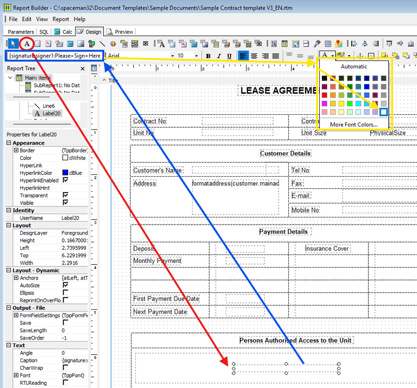
- Red Arrow: Create a label
- Select the new label
- Blue Arrow: Change its text
- Paste the tag inside the text: {signature:signer1:Please+Sign+Here}
- Yellow Arrow: Change the colour of the text to white
- Save the file!
Once you have added all the tags you need to your template, make sure you add the file name of the template to the “Signable: RTM Template” site details question.
Update your Site Signable Details
Go to: Spaceman Desktop → Maintenance → Sites → Select Site and Expand → Details tab to view new questions that have been added to the Site details tab-
Signable: Enabled (Required)
- Set to YES if you want Spaceman Shop to send Contract Signature Requests using Signable.
- Upon payment for a booking (not reservation) the customer will be sent an email from Signable with a link to their Contract PDF which they will be able to sign and submit.
- Set to NO to stop Contract Signature Requests through Spaceman Shop.
- Set to YES if you want Spaceman Shop to send Contract Signature Requests using Signable.
-
Signable: RTM Template (Required)
- Put the file name of the Contract RTM template you want to be used for Signable Signature Requests.
- Add the Contract RTM file into the System Jobs and Reports then put it’s file name (not report name) into this Site details question, with the .rtm extension.
- Spaceman Desktop → SpacemanWeb → Maintenance → System Jobs and Reports → New
-
Signable: Email Message
- Add any text you want to be displayed on the email the customer will receive from Signable with a link to their Contract PDF to sign and submit. Will show in all capitals, and remove any advanced characters.
-
Signable: Import PDF Signed
- Imports the Signed PDF into Spaceman Desktop
-
Signable: Import Attached Files (if available)
- Imports any attached files from Signable into Spaceman Desktop
-
Signable: Import Text Fields (if available)
- Imports any text fields from Signable into Spaceman Desktop (as a file)
Signable Update Button
Spaceman Desktop → Signable Update 
To add this button for your user, right click the action bar on your Spaceman Desktop and click Signable Update to show the button.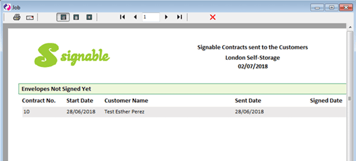
This job will get the status of all active or newly completed envelopes (signature requests) from Signable and update the relevant contracts in your Spaceman Desktop. Please run this job regularly to check the status of the contract signatures for bookings made through Spaceman Shop.
Signable Site Signature
Go to: Settings → Custom Settings → Page “Spaceman Shop”
Spaceman Shop can only send contract signature requests through Signable for up to two signers: Customer and Site
Set the custom setting “Site required to sign e-contracts” to YES to get Signable to send a signature request to the site’s email address once the customer has signed and submitted. You must add “signer2” tags to your Contract template RTM file if you wish for the site to give a signature too.