Audience
- Admins
- Support staff
Resources
If you are setting up a demo system, you may use our sample template here: Terms and Conditions Sample.rtm
Add Terms & Conditions Template to Site
A Terms and Conditons template is needed as it is a requirement of Spaceman Shop that the customer is able to view and agree to their Terms and Conditions before the contract is created.
Go to: Site window → Documents tab
When a customer Books on Spaceman Shop (starts a New Contract) they are shown your Terms & Conditions and must accept them before making their first payment.
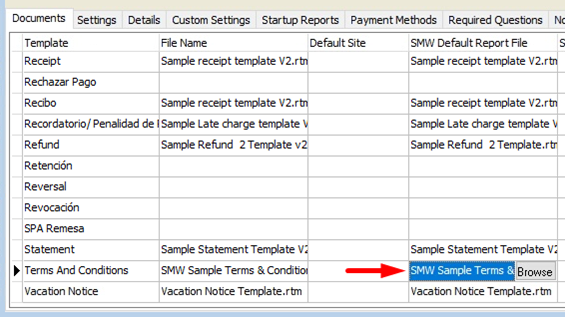
The Terms & Conditions PDF they are shown is exported from the “Terms And Conditions” site template in the Documents tab of the Site window. Please add an RTM file to the SMW Default Report File column.
Note: In Spaceman Cloud, it is a good idea to upload the same file to the File Name column such that you can access it in the Report Builder by double-clicking on “Terms And Conditions” in the Template
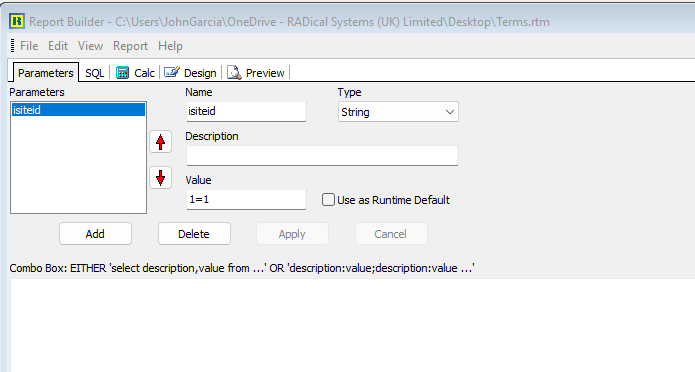
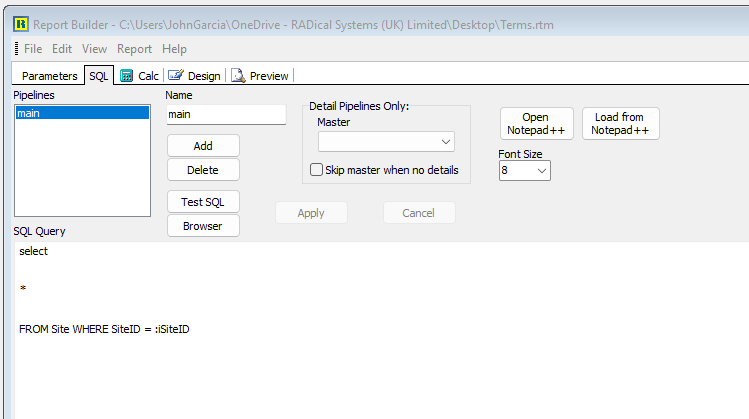
Support Note: This RTM file must have a SiteID parameter, and its main pipeline should expect a single site, as below:
SELECT * FROM Site WHERE SiteID = :iSiteID
Be sure to not overwrite any necessary dynamic fields needed for your Terms & Conditions pages in your template, if you are copying from a Contract template.
RADical employees should have a SMW Sample Terms & Conditions RTM template as a starting point for a new one.
If you update your Terms & Conditions document:
- Add your new Terms & Conditions RTM file to the SMW Default Report File column in the Site window Documents tab
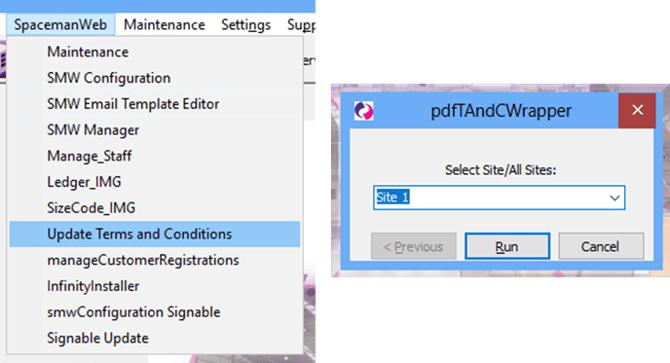
- Run SpacemanWeb → Update Terms and Conditions
- Select your Site, or to Update all sites and click Run.
- Otherwise, the PDF shown on Spaceman Shop will not be updated.