
You can share links that take customers directly to the Spaceman Shop booking journey with a specific site already selected. This removes the site selection step, making the journey faster — particularly useful for multi-site operators who want to direct customers to a specific location from an external website, email campaign, or social media post.
URL Format
Add a SiteID query parameter to your Spaceman Shop URL to skip the site selection step automatically:
https://[your-spaceman-shop-url]/book?SiteID=[SiteID]
For example:
https://www.example-storage.com/book?SiteID=ABC123XYZ456ABCD
After the link is processed, the SiteID is removed from the URL so it does not remain visible in the address bar.
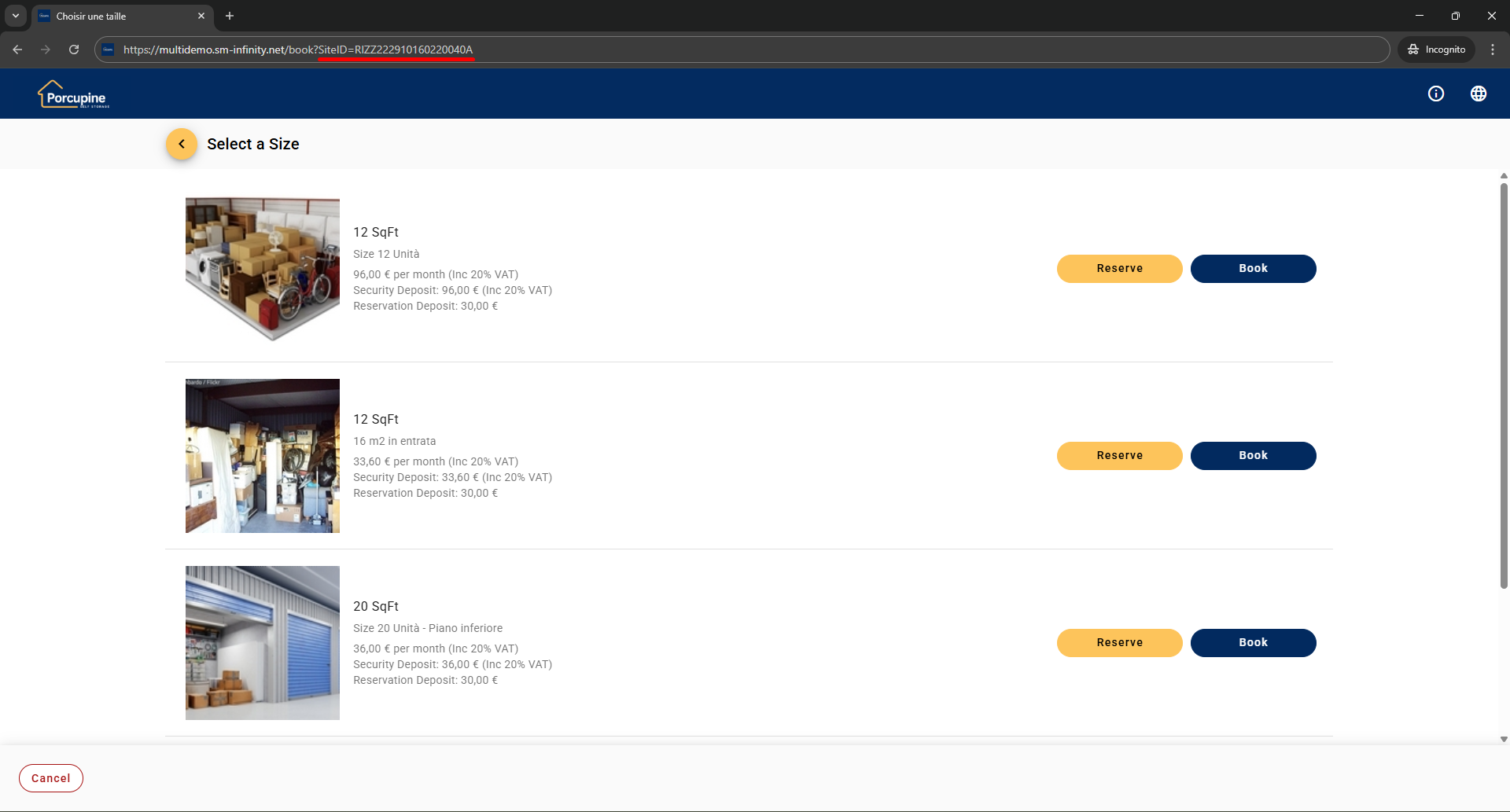
What Happens When a Customer Clicks the Link
- Site found with available units — the site is selected automatically and the customer is taken straight to the unit selection page.
- Site found but no units available — a message is displayed explaining that the site is currently unavailable. The customer remains on the site selection page and can browse other sites if applicable.
- SiteID not recognised — a message is displayed explaining that the site was not found. The customer can continue browsing from the site selection page.
Finding a SiteID
The SiteID is the unique internal identifier for each site in Spaceman Desktop. You will need to find it with an SQL query in your database.
Go to: Spaceman Desktop → Support → SQL Tool
Copy and paste, then execute the query below. Then find and copy the value from the SiteID column site you want to create a link for. Normally, this ID is 20 characters long.
SELECT SiteID, SiteName, SitePin FROM Site
Copy the SiteID shown in the site record and use it to build the link as described above. Create a separate link for each site you want to link to directly.
Troubleshooting
- If customers are being taken to the wrong site, check that the SiteID in the URL exactly matches the SiteID taken from Spaceman Desktop. SiteIDs are case-sensitive — paste directly from Desktop rather than typing manually.
- If the link is not skipping the site selection page, confirm the parameter name is spelled exactly SiteID (capital S, capital I, capital D). Also confirm the site has available units — if there is no availability, the Shop shows an error rather than auto-selecting the site.
- If customers see a “site not found” message, the SiteID does not match any site in the system — double-check the value from Spaceman Desktop. If they see a “site unavailable” message, the site exists but has no units available to book at that time.