
A 10% offer can run on your small units, 20% on vehicle storage, and your standard site discount can carry on covering everything else, all at the same time and without touching individual rentals.
Until now, Spaceman Shop could only use one automated discount per site. Every unit an Occupier looked at got the same offer. You can now assign a discount scheme to specific sizecodes, and Shop works out the right price for each sizecode on its own as the Occupier browses, reserves and pays.
You set all of this up in Spaceman Desktop. There is nothing to configure in Shop itself, and your existing discount schemes keep working exactly as they do today until you choose to use the new option.
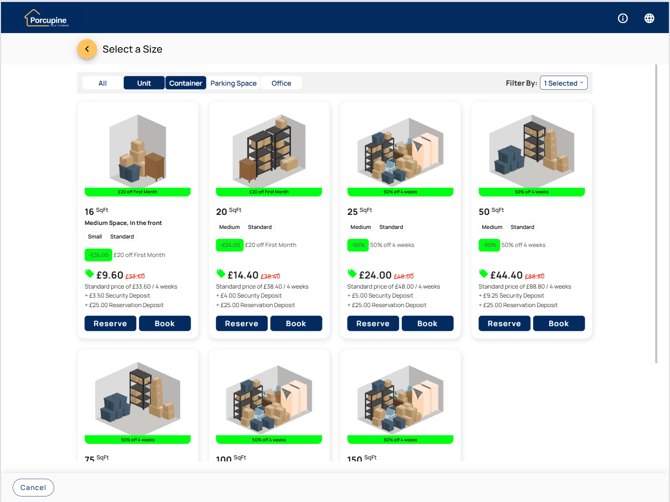
How Spaceman Shop chooses a discount
When an Occupier looks at a unit, Shop works down this list and stops at the first match:
- A discount scheme assigned directly to that unit's sizecode, if the scheme is active today.
- Your site's default shop discount scheme, if you have one and it is active today.
- No discount.
Only one scheme ever applies. Discounts are not added together. If a sizecode somehow ends up with more than one active assignment, Shop uses the scheme with the lowest Sort Order value on the Discount Scheme form.
Sizecode discounts apply to unit rental only. They change the price of the unit itself. Hire items, insurance and sale items are not affected by a sizecode assignment, whichever sizecode the Occupier has chosen.
Setting up a discount for specific sizecodes
Work through this on the site that owns the discount scheme. Discount schemes belong to a single site, so repeat it for each site that needs the offer.
Step 1. Open or create the discount scheme
Go to the Discount Scheme form and select the site, then the Initial Discount tab. Either pick an existing scheme from the list or create a new one with New.
Set the scheme up as you normally would: description, sort order, the discount amount or percentage, start and expiry dates, and the Shop Display Name. The Shop Display Name is the wording your Occupiers see next to the price, so make it something customer friendly.
Two things matter for sizecode discounts:
- The Discount Type must be All or Rental. Hire and Insurance types cannot be restricted to sizecodes.
- The scheme must not be your Default Scheme for Shop. A default scheme covers every sizecode by definition, so the two settings cannot be combined.
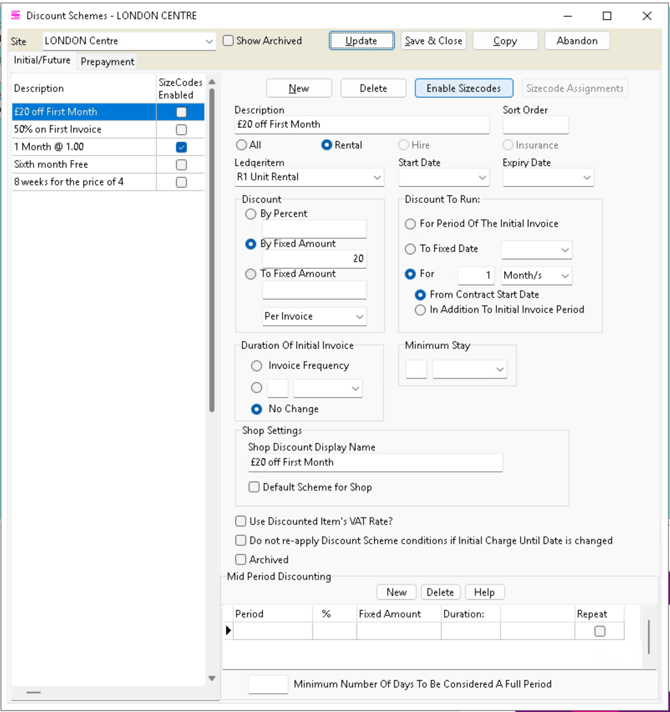
Step 2. Turn on sizecode restriction
With the scheme selected, click Enable Sizecodes in the Spaceman Shop Settings section.
The button changes to Disable Sizecodes, and a tick appears against the scheme in the SizeCodes Enabled column of the scheme list. From this point the scheme applies only to sizecodes you assign to it. It will not discount anything until you make at least one assignment.
The Default Scheme for Shop checkbox is greyed out while sizecode restriction is on.
Step 3. Assign the sizecodes
Click Sizecode Assignments. The Size Code Discount Assignments window opens, listing every sizecode that has a rate at this site.
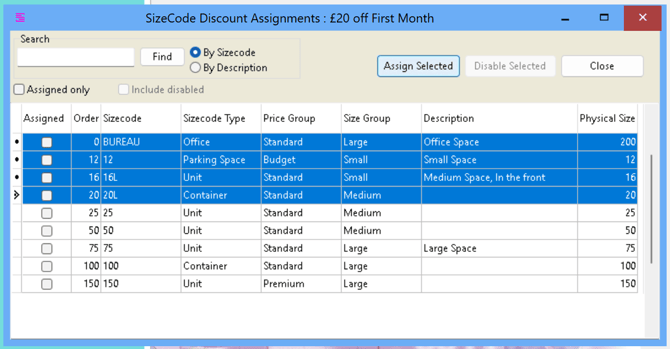
The grid shows these columns:
| Column | What it shows |
|---|---|
| Assigned | Ticked when this sizecode is currently assigned to this scheme |
| Order | The sizecode's own sort order, as used elsewhere in Spaceman. This is a display order, not a discount priority. |
| Sizecode | The sizecode reference |
| Sizecode Type | The type the sizecode belongs to |
| Price Group | The sizecode's price group |
| Size Group | The sizecode's size group |
| Description | The sizecode description |
| Physical Size | The actual size value |
To assign sizecodes:
- Find the sizecodes you want. Type into the Search box and click Find, choosing By Sizecode or By Description first. You can also click any column heading to sort by it, which is the quickest way to group by price group or size.
- Select the rows.
- One row at a time: click the row, then press the space bar to select it. Repeat for each row you want.
- A run of rows: hold Shift and click.
- Everything listed: right click the grid and choose Select All.
- Start again: right click and choose Clear Selection.
- Click Assign Selected. Confirm the prompt, which tells you how many sizecodes you are about to assign. Spaceman then confirms how many were assigned.
- Click Close when you are done.
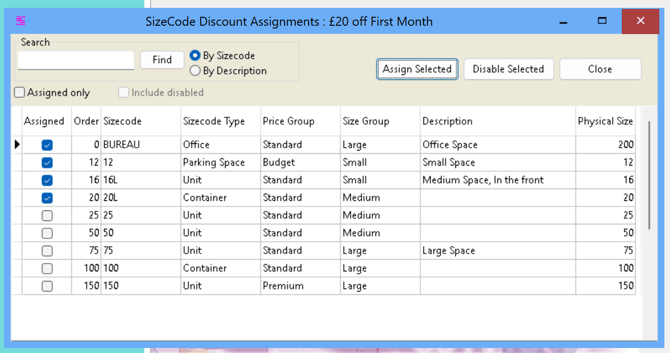
Two checkboxes help you review what you have done:
- Assigned only narrows the list to sizecodes already on this scheme. It starts unticked so you see all your sizecodes when the window opens.
- Include disabled also shows sizecodes whose assignment has been switched off, so you can find and reinstate them.
To take a sizecode off the scheme, select it and click Disable Selected. The assignment is switched off rather than deleted, so you keep a record of it and can re-assign the sizecode later.
Checking the discount on a sizecode:
Once schemes are assigned, the quickest way to see what a given sizecode is getting is from the sizecode itself. Open the Sizecode form and go to the Assigned Discounts tab, which sits alongside Rates and Movements.
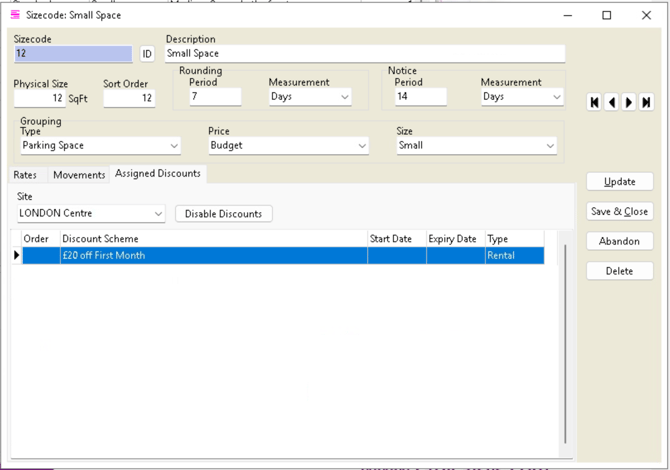
The tab shows one site at a time. Use the Site dropdown to switch. It opens on the site you are logged in to and lists every site where this sizecode has a rate, limited to the sites you have access to.
| Column | What it shows |
|---|---|
| Order | The discount scheme's sort order. If a sizecode has more than one active scheme, the lowest number is the one Shop uses. |
| Discount Scheme | The scheme description |
| Start Date | When the scheme begins. Blank means it is already running. |
| Expiry Date | When the scheme stops. Blank means it does not expire. |
| Type | All, Rental, Hire or Insurance |
Rows shown in blue are your site's default shop scheme, not an assignment to this sizecode. A blue row means this sizecode has no discount of its own at this site and is falling back to the site default. As soon as you assign a scheme directly to the sizecode, the blue row disappears and the assigned scheme is listed instead.
This tab is a view only. You cannot edit a scheme or change which sizecodes it covers here. That is all done from the Discount Scheme form.
Turning a sizecodes discount off:
On the Assigned Discounts tab, choose the site and click Disable Discounts. Confirm the prompt and every active assignment on that sizecode at that site is switched off in one go.
This does not remove all discounting from the sizecode. It removes the sizecode's own assignments, which means the sizecode goes back to using your site's default shop discount if you have one. You will see the blue default row appear in the grid straight away. To stop that too, the sizecode would need to be excluded from the default scheme, which means not having a default shop scheme at that site.
The button is greyed out when there is nothing to disable, or when the selected site is read only for you.
To put an assignment back, go to the Discount Scheme form, select the scheme, click Sizecode Assignments, tick Include disabled to find the sizecode, select it and click Assign Selected.
Rules and limits
| Rule | What you will see |
|---|---|
| A scheme cannot be both your default shop scheme and restricted to sizecodes | Enable Sizecodes is unavailable on a default scheme, and Default Scheme for Shop is greyed out on a sizecode restricted scheme |
| Only All and Rental discount types can be restricted to sizecodes | A message telling you the restriction can only be used with discount type All or Rental |
| You cannot restrict an expired scheme to sizecodes | A message telling you the restriction cannot be enabled on an expired scheme. Extend or clear the expiry date first. |
| You cannot switch sizecode restriction off while the scheme still has assignments | A message telling you the scheme has sizecode assignments. This includes assignments you have already disabled. |
| Only one discount ever applies to a unit | Discounts do not stack. The lowest Sort Order wins. |
| Sizecode discounts cover unit rental only | A sizecode assignment changes the unit price only. Hire items, insurance and sale items are unaffected. |
| Archived schemes cannot be changed | The sizecode buttons are unavailable, and archived schemes are shown in red on the Discount Scheme form |
| Read only sites | You can view assignments but not change them |
What your customers see in Spaceman Shop:
Nothing changes in the look of Shop. Your Occupiers see the same journey, with the correct discount for whatever they have chosen:
- Browsing units. Each sizecode shows its own discounted price and its own offer wording, taken from the Shop Display Name of whichever scheme applies to it.
- Choosing a unit. The discount follows the sizecode they pick, so switching from a small unit to a large one updates the offer as well as the price.
- Basket. The basket prices the unit using the sizecode's own scheme, alongside any hire, insurance or sale items priced on the site default.
- Booking and payment. The same scheme carries through, so the amount taken matches what was shown.
Because Occupiers see only one offer per unit, it is worth reading down your sizecode list in Shop after setting up a new scheme, to be sure the mix of sizecode offers and your site default reads the way you intend.
Troubleshooting:
| What you see | Why | What to do |
|---|---|---|
| There is no Enable Sizecodes button, and no Assigned Discounts tab | Spaceman Shop is not enabled for your system, or Desktop is older than 4.5.86 | Check your Desktop version, then contact support to confirm Shop is enabled |
| Enable Sizecodes is greyed out | The scheme is your default shop scheme, or it is archived, or the site is read only for you | Untick Default Scheme for Shop first, or use a different scheme |
| Sizecode Assignments is greyed out | Sizecode restriction is not on for this scheme yet | Click Enable Sizecodes first |
| The sizecode I want is not in the assignment list | The sizecode has no rate at the site this discount scheme belongs to | Add a rate for that sizecode at that site, then reopen the assignment window |
| Shop still shows the old site wide discount on a sizecode I have assigned | The assigned scheme is not active today, because its start date is in the future or its expiry date has passed. A scheme stops applying on its expiry date, not the day after. | Check the Start Date and Expiry Date on the Assigned Discounts tab |
| The Assigned Discounts tab lists a scheme, but Shop is not using it | The tab lists assignments whether or not they are in date. Shop only uses schemes that are active today. | Compare today's date against the Start Date and Expiry Date columns |
| Shop shows no discount at all on a sizecode | The sizecode has no active assignment and the site has no default shop scheme | Assign a scheme to the sizecode, or set up a default shop scheme for the site |
| A row appears in blue | That is your site default shop scheme, shown because this sizecode has no discount of its own | Nothing, unless you want the sizecode on its own scheme |
| Only one discount is applied when two schemes cover the sizecode | Discounts never stack. The lowest Sort Order wins. | Adjust Sort Order on the Discount Scheme form, or disable the assignment you do not want |
| Hire or insurance is not being discounted by my sizecode scheme | A sizecode assignment only changes the price of the unit itself | Contact support to discuss discounting on hire and insurance items |
| I cannot switch sizecode restriction off | The scheme still has assignments, including disabled ones | Contact support if you need the assignment history cleared, or archive the scheme and create a new one instead |