To change the displayed, public information for a site on Spaceman Shop (and Spaceman Portal) you must navigate to the Site window in Spaceman Destkop, and to the Public Information and Opening Hours tabs.
Spaceman Desktop → Maintenance → Sites
→ Select and Exapand a Site → Public Information / Opening Hours
Public Information
On this tab you can set up what site information is displayed to occupiers on Spaceman Portal and Spaceman Shop.
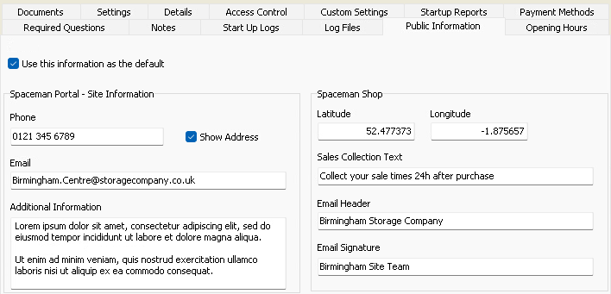
- "Use this information as the default" checkbox
- If ticked, this site's public information will be displayed to occupiers by default.
- This will be when they are not logged in, on the login page, or when they haven't yet selected a site for a new booking on Spaceman Shop.
- Try to only tick this box for one of your sites, as only one site is shown.
- If no sites have this box ticked, then no site information will be used as default.
- Phone & Email fields
- Contacts that are displayed to the occupier
- Show Address checkbox
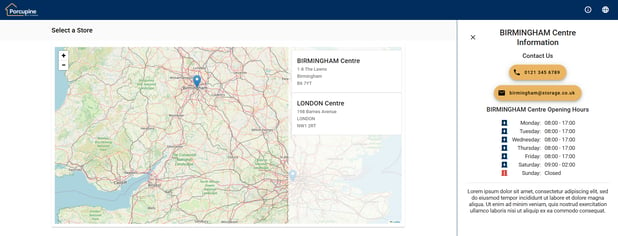
- If ticked, the site address is shown on the Site selection page of Spaceman Shop
- Additional Information textbox
- The text is shown at the bottom of the Info section on Spaceman Portal and Spaceman Shop. After Contact information and Opening Hours.
- Latitude & Longitude fields (Required)
-
- Will place the pin on the Site Selection page at the coordinates provided.
-
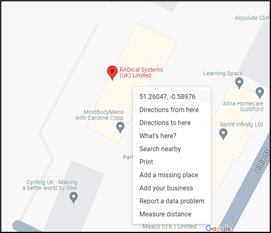
- On Google Maps, right click the location you want the site pin on the map to be, then click the Coordinates at the top of the right-click actions menu to copy them. (Latitude, Longitude)
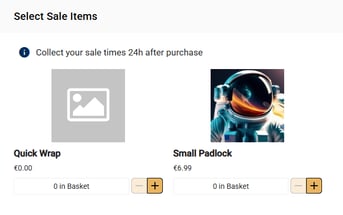
- Sales Collection Text field
- Allows for a small message about hire or sales items if needs be.
- Displays this text on the Hire and Sales items pages, as well as on basket and on summary.
- Email Header & Email Signature fields (Requried)
- Header is shown at the top of all emails sent from Spaceman Web, and Signature at the end.
Opening Hours
On this tab, you can select the opening hours the site uses and these will be displayed on Spaceman Portal and Spaceman Shop.
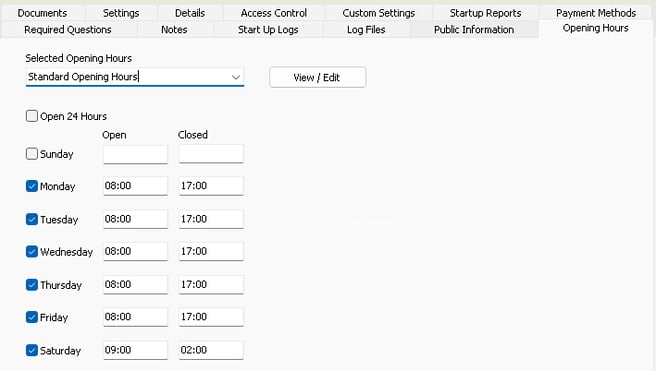
- If "Open 24 Hours" is checked, no information is needed for the days of the week as the opening hours display will just say the site is open 24/7.
- For each day of the week, you have a checkbox to control if the site is open or closed that day, and field for the opening and closing time each day.
- You can only select from the "Selected Opening Hours" dropdown list, to add or edit new opening hours, click "View / Edit" to open the Site Opening Hours window.
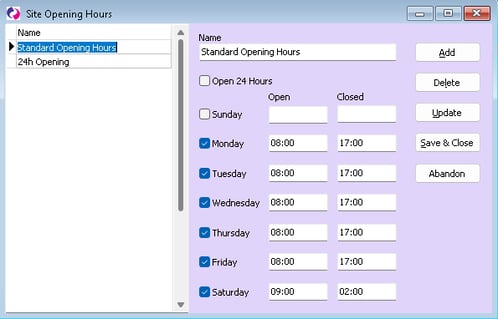
- Once you have Added / Edited your Opening Hours, make sure you click Update on the Site Opening Hours window, and then click Update on the Site window too such that the new Opening Hours appear in the dropdown list.
- To go back to a site NOT having opening hours, select the empty option from the Selected Opening Hours drop down list.
On Spaceman Portal and Spaceman Shop
Info button
The Info icon in the top right of the page will open a side section on the right with information about the relevant site. On Spaceman Shop, it will show selected site for booking, on Spaceman Portal, it will show logged-in site, otherwise, the default site.
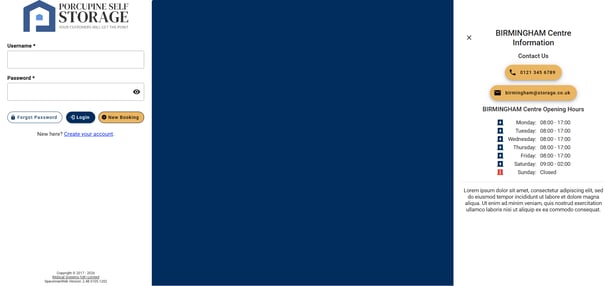
- If Phone / Email are given, they are displayed and can be pressed.
- If Opening Hours are given, they are displayed next.
- If Additional Text is given, it is displayed at the end.
Site Selection
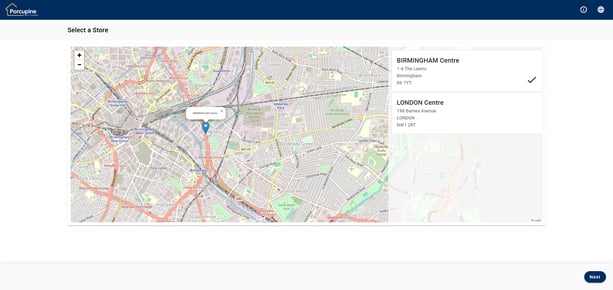
On site selection, the Address is shown if "Show Address" is checked, and the pin on the map is controlled by the required Latitude and Longitude fields' values.
Sales Collection Text
Text is displayed when adding Hire items or Sale items, in the Basket, and on the final summary page after payment.