
When a customer selects a unit in Spaceman Shop, that unit is temporarily held to give them time to complete their booking. If they become inactive for longer than the configured timeout period, their basket expires automatically, the unit is released, and it becomes available for others to book. This keeps availability accurate and prevents units being held by abandoned sessions.
What the Customer Sees
While a unit is held in the basket, a countdown timer is displayed in the Spaceman Shop header showing how much time remains.
- Timer counting down
- The timer shows minutes or seconds remaining depending on how much time is left.
- The display reads: “Unit [unit number] reserved for [time]” (or a shorter version on mobile).
- Warning at 60 seconds
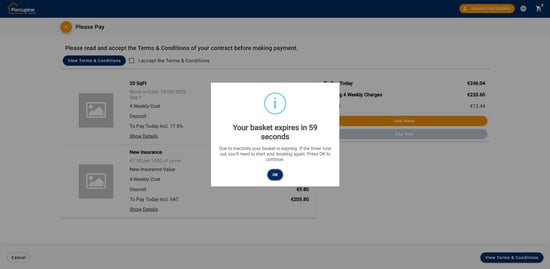
- When fewer than 60 seconds remain, a warning message appears on screen.
- The customer can dismiss the warning to acknowledge they are still active. Their session continues for the remaining time.
- Session expired
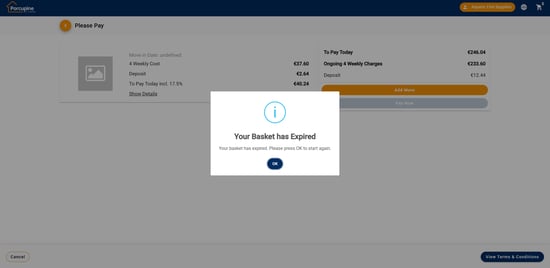
- If the timer reaches zero, a “Session Expired” message appears.
- The unit is released and becomes available to book again.
- The customer can start a new booking.
Configuring the Timeout Duration
You can adjust how long units are held before the basket times out via Custom Settings in Spaceman Desktop.
Go to: Spaceman Desktop → Settings → Custom Settings → page “Spaceman Shop”
- Inactive Basket Timeout after (minutes) – the number of minutes of inactivity before the basket expires and the unit is released. The default is 10 minutes. If left blank, the default applies.
This is a per-site setting. Increasing the value gives customers more time to complete a booking; decreasing it releases units sooner.
Troubleshooting
- If a customer reports being timed out mid-booking, this is expected behaviour — they were inactive for longer than the configured timeout. They can start a new booking and the unit should be available again. If they believe they were active throughout, raise with RADical Systems.
- If a unit appears unavailable in Shop but no corresponding booking is visible in Spaceman Desktop, the unit may be held in an active customer basket. It will be released automatically once the timeout period passes with no activity. If the discrepancy persists beyond the configured timeout, escalate for investigation.
- If the countdown timer is not appearing, confirm that the Inactive Basket Timeout after (minutes) custom setting has a value configured for that site in Spaceman Desktop. The timer only displays once a unit is held in the basket and the setting is active.