
Audience
- Support staff
- Admins
Add a Spaceman Ops User
Users are added to Spaceman Ops via an XML Job in Spaceman Desktop.
In Spaceman Desktop, log in as an administrator
- Click SpacemanWeb extras Menu
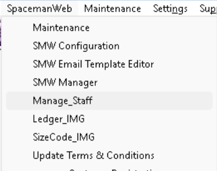
- Select Manage_Staff
- The Manage SpacemanWeb USER dialog will appear
- Select the Staff Member from the select list
- the list only shows users that are valid and have email addresses
-
- If a staff member does not appear in the list, you must first update their staff record in Spaceman Desktop → maintenance → users
- When you have selected the Staff Member, click Run to get the staff account management form
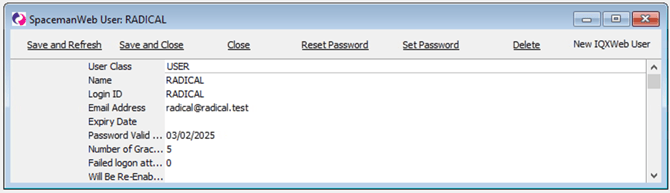
From this form, you can do the following:
- reset the account’s password to “pa55word”
- set the account’s password to something you type in
- edit the account’s details (User class, email address, expiration date, password validation expiry date)
- delete the account.
Set the User Class of the staff member you would like to treat as the owner to “OWNER”. They will have more privileges on Spaceman Ops. For example, setting up theme colours and images is done by the owner account.
User Class can include user classes for Spaceman Link (SMHapi) if Spaceman Link has been installed. Either HAPIUSER or SMHapi_User.
When you have finished, click [Save and Close]
Unlock a Spaceman Ops User
If a Spaceman Ops account is locked, it can be unlocked from within Spaceman Desktop.
You must use the Manage_Staff Job.
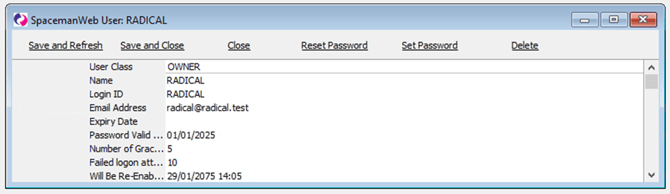
- To unlock the account, empty the ‘Will Be Re-Enabled On’ field.
- The User account is now Re-Enabled
- Doing this may not address the reason the account was locked in the first place.
- Correct the Expiry Date and/or the Password Valid Until date
- Now, the User shouldn't be locked when they next try to log in to Spaceman Ops.