
Jump to a section here...
New Features
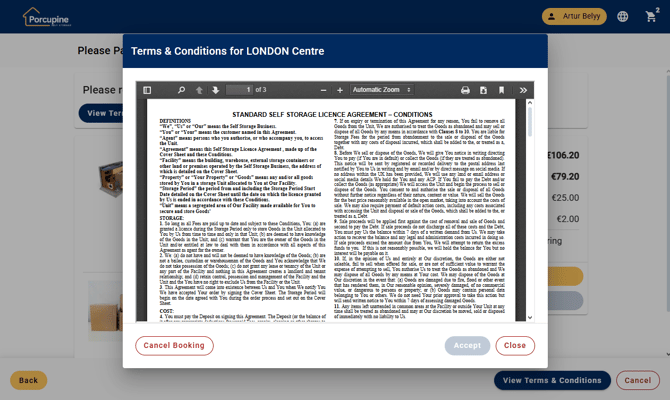
Add the ability to view terms and conditions in the Spaceman Shop
Empower your customers and boost trust with our latest update: Customers can now easily view and approve Terms and Conditions before making a payment or signing their contract - fully complying with UK standards.
A brand-new “Terms and Conditions” document template and sample are available, and a powerful shared PDF viewer has been added for seamless access in both customer and user portals. Plus, the “View T&C” option on the Pay Now page delivers unmatched clarity and transparency at every step of the contract process.
Hide Transactions from Spaceman Portal
Spaceman Desktop (Space Manager) users can now hide transactions from appearing in the Spaceman Portal.
To hide a transaction, go to the customer account’s Transactions tab in Spaceman Desktop, right-click on the desired transaction, and select “Hide In Spaceman Portal.”
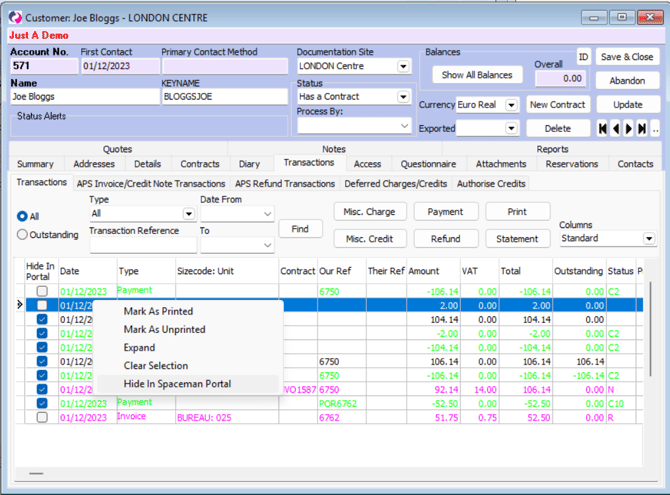
The transactions are now hidden from Spaceman Portal.
This feature is helpful for concealing any unnecessary transactions, such as those entered in error, ensuring only relevant transactions are visible to customers.
Change browser favicon
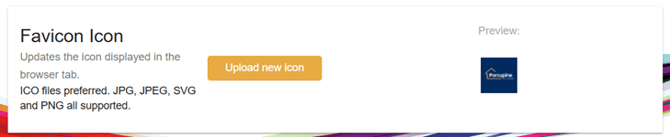
You can now update the favicon of your Spaceman Shop apps to your own logo.
Log into Ops (User Portal), go to Theme and scroll to the bottom. Upload your preferred icon and your website will be updated.

Improvements to existing features
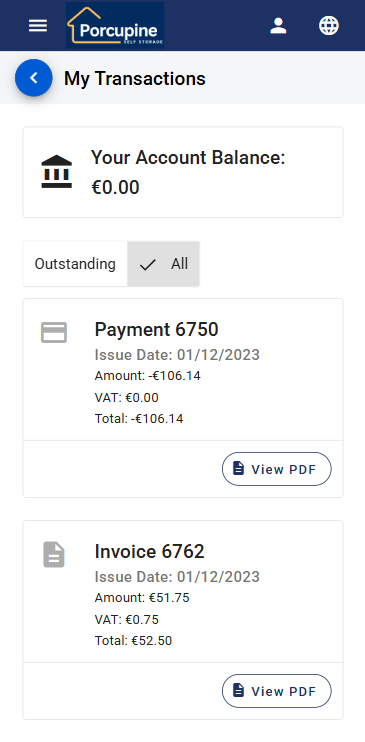
Re-think of Spaceman Portal Transaction Page
The Spaceman Portal has been redesigned to better meet occupier needs, providing a clearer overview of account balance and payment information on both mobile and desktop:
Mobile:
- Account balance now displayed at the top.
- “Pay” button added directly to cards, opening the Stripe payment module for immediate payment.
- “Download” action renamed to “View” for easier access to PDFs.
- Transaction details page, search/filter options, and unnecessary information have been removed for a cleaner experience.
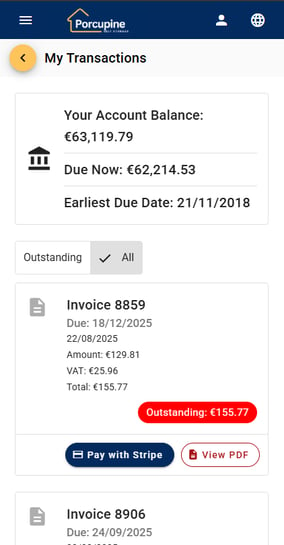
Desktop:
- Account balance is now visible at the top.
- “Pay” option available in the burger menu, linking to the Stripe payment module.
- The “more details” option, transaction details page, search/filter options, “their ref,” and “site” fields have all been removed to streamline the interface.
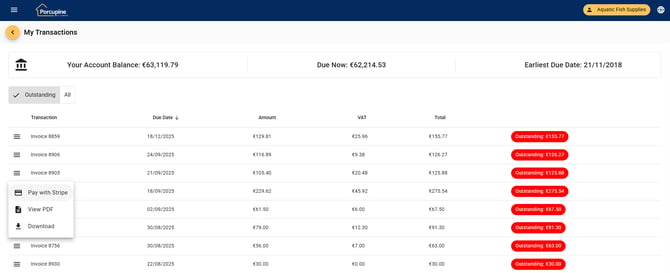
These changes make it easier for occupiers to see what they owe, when payment is due, their next payment amount, and provide more direct access to view and pay invoices.
Introduce an option to disable insurance sales in Spaceman Shop
In Spaceman Desktop (Space Manager), you can now configure the Shop to remove Insurance options.
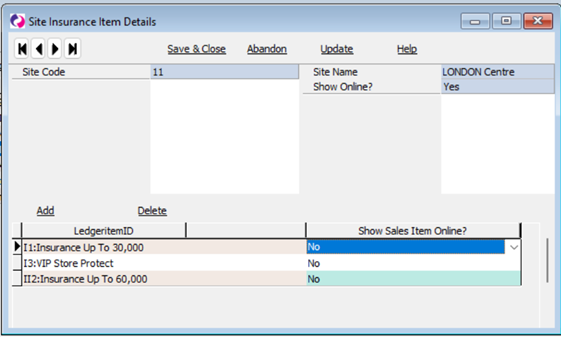
Go to Settings, Custom Settings, Spaceman Shop and set “Insurance Mandatory” = “NO” and “Allow Customers Own Insurance” = “NO”.
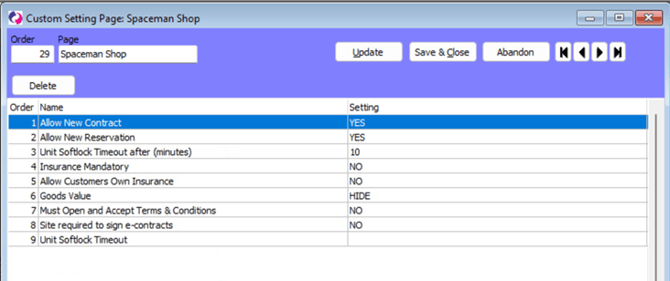
Now, when choosing to “Book” a size in Shop, the Insurance option will no longer be presented.
Add a setting to enable reservations and/or contracts in Shop
Spaceman Shop now includes custom settings to hide the reservation or contract creation options when selecting a unit size. By disabling the reservation button, occupiers will only see the option to create a new contract, reducing confusion. If “Allow New Contract” is set to NO, the “Book” button is hidden, “deposit” text is removed, and the reserve button is highlighted as the primary action.
Add ability to hide “Goods Value” in Shop
Spaceman Shop now includes a new custom setting for displaying the Goods Value on the “Pay Now” modal of the “Select Sizecode” page. Operators can choose to require, show, or hide the Goods Value field based on customer feedback. By default, the field is hidden to reduce confusion for occupiers.
Update the front end design on “Select Size” in Shop, to better display deposit information
In Spaceman Shop on the Select Sizecode page, occupiers may see two deposit fields: “Deposit” (displayed alongside the size price) and “Deposit required for reservation” (shown below both action buttons). This update clarifies the difference between the general deposit and the reservation-specific deposit, addressing user feedback around visibility and clarity.
New booking button is now the first option in the Portal menu
In Spaceman Shop, the “New Booking” menu item in the Portal is now positioned first, making it easier for both operators and occupiers to start a new booking. This change prioritises the main call to action, streamlining the sales process and improving usability.
"Call to Action" button on basket/checkout
Maximise conversion with Spaceman Shop: The “Pay Now” button is now highly visible on both the basket and pay now pages, positioned directly beneath the “Add More” button at checkout. This enhanced layout ensures the primary call to action stands out, making it easier for occupiers to complete purchases quickly and confidently.
Signable in Spaceman Shop, translate contact events
In Spaceman Shop, the Signable integration for contract signatures now supports multi-language contact events. Contact events generated after sending a Signable envelope will appear in the user’s default language, ensuring clear communication across supported regions. This enhancement aligns Signable with the translation capabilities already present in our Stripe integration.
Reformat the "Welcome back" message
We have improved the welcome message that your customers will see when they log in to Spaceman Portal.
Bug Fixes
Spinner on registration
A loading spinner has been added to the account registration process in Spaceman Shop. When an occupier submits their registration details, a spinner now appears to indicate the request is being processed, improving user feedback and ensuring clarity during registration.
Currency code not added to customer on register
Resolved an issue in Spaceman Shop where new accounts registered via the portal or shop were created in Spaceman Desktop without a currency code. Now, newly registered customers are automatically assigned the correct currency code, ensuring that all subsequent transactions are properly associated with a currency.
Going through Spaceman Shop in German causes an error when trying to pay
Resolved an issue in Spaceman Shop where occupiers using German or Taiwanese language settings experienced errors when selecting a move-in date and attempting to pay. The payment modal now displays correctly regardless of locale or date format, ensuring a smooth booking process for all users.
Spaceman Shop: Customer Status not updated after new contract
Resolved an issue in Spaceman Shop where customer accounts created via “Pay Now” or new contract workflows remained in “New Enquiry,” “Reservation,” or “Vacated” status instead of updating to “Has a Contract.” Customer Statuses now update correctly in line with actions performed, ensuring consistency with Space Manager.
View All Items, View All Size Codes reports are added into the customer report
In Spaceman Shop, the “View All Items” and “View All Size Codes” reports are now hidden from the Customer Reports menu.
ID number can be lost in registration
In Spaceman Portal, registration has been improved to prevent incomplete identification entries. The form now requires an identification type selection whenever an identification number is provided, even if both fields are optional. Submissions with a filled “Number” field and no type selected will prompt a warning and block progress, ensuring all provided identification information is properly paired and saved.
Keypadzone error when editing in new contract wizard
In Spaceman Ops, editing a unit during the new contract wizard now works smoothly even when no keypad zones are set up. Previously, attempting to edit and continue with no access control zones configured would trigger an error and block contract completion. The process has been updated to handle missing keypad zone data correctly, allowing contracts to complete as expected.
Insurance name setting is not used on the contract insurance tab
The Contracts page in the Spaceman Portal now displays the correct tab name set in the Insurance Name setting (e.g., “Store Protect”) instead of always showing “Insurance”. All references to “insurance” have been updated to use your chosen Insurance Name, ensuring consistency and legal accuracy across the application.
Order of sizecodes in Spaceman Shop is random if the same SortOrder
Spaceman Shop now applies a secondary sort order to sizecodes with the same sort value on the size selection page. When multiple sizecodes share the same sort order, they are now consistently sorted by description (alphabetically) or by unit size, ensuring a clear and predictable display for occupiers.
Two Cancellation Confirmation messages on Spaceman Shop Verification code page
The registration workflow in Spaceman Shop has been improved for a better user experience. When cancelling on the verification code page, users now see only a single confirmation alert. Selecting “Yes” returns them to the site selection page, while “No” keeps them on the verification code page with the option to cancel again. This update removes duplicate alerts and streamlines the cancellation process.
Registration breaks if only one phone type is selectable (the 2nd pre-selected)
Fixed an issue in Spaceman Shop where the registration form would pre-select the second phone type in the list and fail to load if only one phone type was available. The form now correctly pre-selects the first available phone type and no longer breaks when only one phone type is selectable. Future enhancements may include allowing sites to specify a default phone type for registrations.
Press cancel then next on site page causes sizecode list to not show
The “Cancel” button has been removed from the select site page in the Spaceman Portal. This prevents issues with session data and ensures that users always select a site before proceeding, resolving the problem of the size code list failing to load after cancelling.
Access Defaults not used by User Portal contract creation
Spaceman Ops now aligns default selection of keypadzone and timezone with Spaceman Desktop. When creating a contract, the portal prioritises unit defaults first, then customer defaults (including default access password if set), and finally, site defaults - ensuring consistency and accuracy in the contract creation process.
Spaceman Shop: TimeZone KeypadZone Defaults not set
When creating a new contract through Spaceman Shop, UnitAccess and AccessActivity records now correctly use the default unit timezone and keypadzone values. If those are not set, site defaults are applied. This ensures proper access control setup for new contracts, consistent with how defaults are configured in Space Manager. You can verify which values have been applied via the Access tab of the Contract in Space Manager.
Spaceman Desktop Versions
3.4.64
Modifiable columns in the global price increase menu
The Global Contracts Price Increase menu now supports multiple selectable columns, allowing users to add and customise columns such as sizecode and standard price to better inform pricing decisions. Non-modifiable columns - especially those to the right of “New Rate Date” - can now be configured as select choices, while essential fields like price and date remain editable. This enhancement offers greater flexibility and visibility for managing contract price increases.
3.4.63
Select Choice Contract Transactions
You can now save the column positions of grid items within the “Transactions” tab of the Contract screen. This option is available as a “Select Choice” under the SUPPORT menu, allowing users to customise and retain their preferred column layout for easier navigation and workflow efficiency.
Customer Contracts and Transactions Select Choice
You can now save your preferred column positions in Customer - Contracts, Customer - Transactions (main tab), and Contract - Transactions tabs. The Select Choice menu has been updated to open as a grid from the SUPPORT menu, making it easier to customise and manage default layouts for each form.
3.4.60
Search/Match to existing customer when creating new customer
A new “Name Match” option has been added to the New Customer Form custom settings. When enabled, this feature displays a searchable form with a grid when adding a new customer. As you type in the name box, matching existing accounts (within your site and access rights) are suggested. You can quickly select an existing record or proceed to create a new customer if no match is found. This enhancement helps prevent duplicate accounts and streamlines customer creation. Further refinements to search and match logic may be discussed as the feature evolves.
Ability to Archive Regions
You can now archive Regions that are no longer needed. Archived Regions are hidden from all forms and selections except within Maintenance – Regions, where a tick box allows you to display or hide archived entries. This update ensures cleaner selection lists and supports easier management of Regions during organisational changes.
3.4.59
Global Price Increase for NON Contract Items
A new form is now available to manage price increases for Sales, Hire, Insurance, Other, and Pack items, with filtering and sortable columns for easier selection. All price changes - bulk, manual, or direct - are now recorded in a new “Movements” tab within the Ledgeritems interface, ensuring full visibility of all adjustments.
Ability to Store Site/Company Logo in Database
A new “Images” menu has been added under SETTINGS, allowing users to upload and manage images for each site or for general use. Images can be filtered by site, and multiple images per site are supported (e.g., headers, footers). Uploaded images can now be pulled directly into templates and reports, streamlining the process of using site-specific logos and graphics.
Move Style menu item to File menu and new to do list
Questionnaire and Windows Style options have been moved from the Settings menu to the File menu. Access to these options is now managed by security rights, which are enabled by default. This change allows users to adjust these settings without requiring full access to the Settings menu.
Desktop Tasks on separate tab to To Do list and other changes
The To Do list has been moved to a dedicated tab for easier access. Right-clicking “Edit” on a task now opens the edit form with the selected task and displays the original caption. “Set Up Tasks” is available from the pop-up menu for users with support rights. Task reporting now sends parameters to reports consistently with other areas of the program. The “Open desktop at login” and “Open desktop with tasks” checkboxes have been relocated to the desktop form.
3.4.58
Recording all changes to ledger items (recording all changes)
Ledgeritems now features two tabs: “Ledgeritems,” displaying current data, and “Movements,” showing a comprehensive history of all changes. This new Movements tab records manual edits, global price changes, and other adjustments for better auditability and transparency.
3.4.55
Due Date Override on the invoice (Temporary Grace Days) - to change the due date
A new “Due Date Override” field has been introduced on the invoice form, allowing users - based on their security profile - to adjust an invoice’s due date when necessary. All related calculations, including PaidToDate and due date logic, now take this override into account for greater flexibility and control in managing invoice timing.